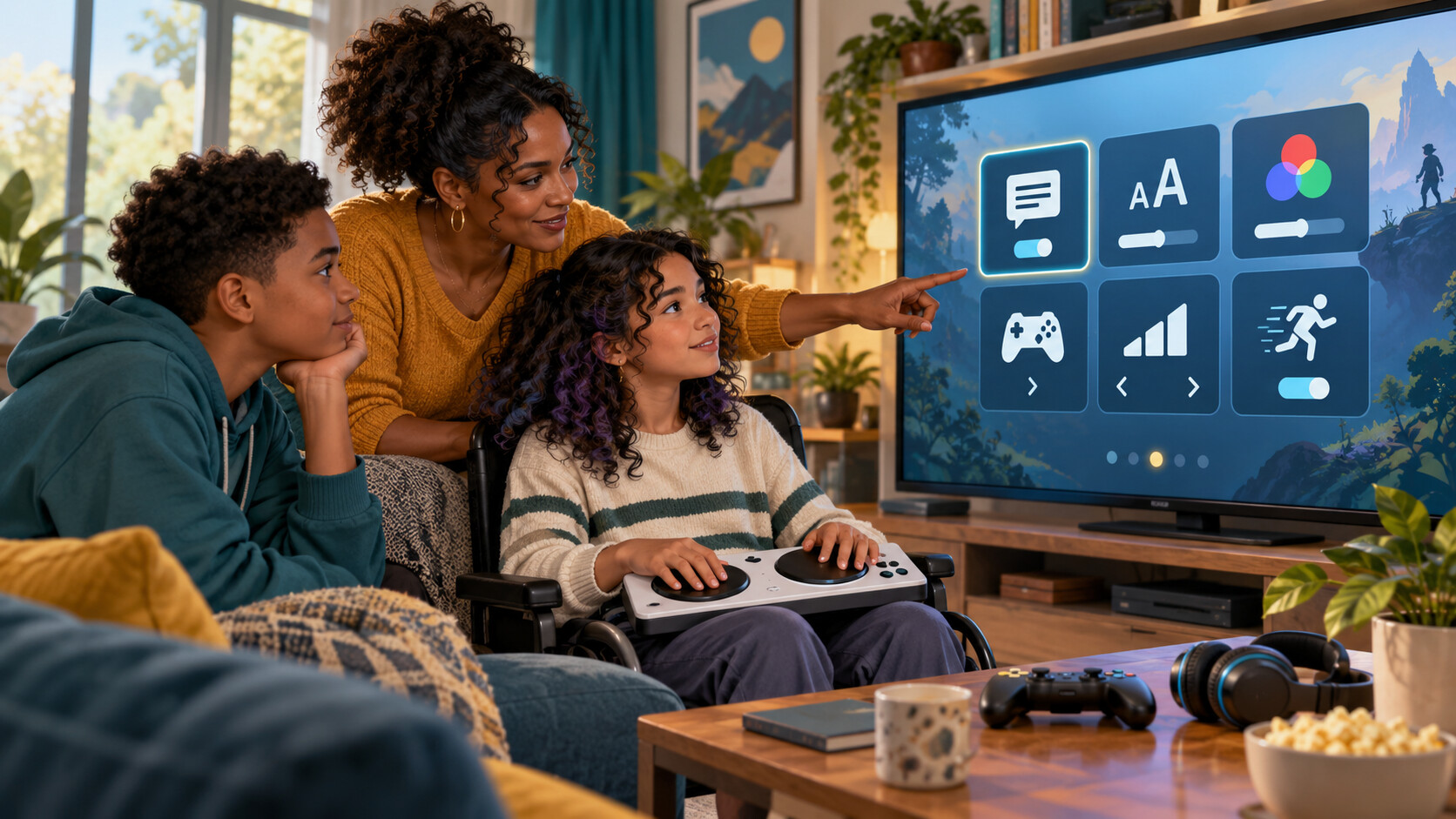
A game can look perfect in a trailer and still become exhausting, confusing or impossible to play. Ten minutes of checking before purchase can reveal far more than a glossy review score—especially when the player needs adjustable controls, readable text, reduced motion, captions or flexible difficulty.
Accessibility is not a single switch and it is not a synonym for an “easy mode”. It is the practical question of whether a particular person can perceive the information, operate the controls, understand the interface and continue playing without an avoidable barrier. Different players need different combinations, so a badge or long feature list should be treated as a starting point, not a guarantee.
Minute 1: write down the real barrier
Begin with the player, not the product page. Name the condition that would stop or strain play. “Needs accessibility” is too broad to guide a purchase; “cannot hold two buttons at once”, “needs dialogue and important sound effects captioned”, or “camera shake causes nausea” can be checked.
- Vision: text size, contrast, colour alternatives, screen narration and object visibility.
- Hearing: subtitles, speaker identification, captions for meaningful non-speech audio and separate volume controls.
- Motor access: full button remapping, alternatives to holding or repeated presses, timing windows, sensitivity controls and compatible input devices.
- Cognitive access: clear objectives, tutorials that can be repeated, adjustable difficulty, navigation support and the ability to pause.
- Sensory comfort: motion blur, camera shake, flashing effects, field of view, vibration and audio intensity.
This list is not a diagnosis. It is a purchasing specification: the minimum set of features the game must provide for the intended player.
Minutes 2–3: read the store’s accessibility information carefully
Major console stores increasingly surface accessibility information. PlayStation says supported PS5 titles can display Accessibility Tags covering visual and audio settings, controller options, difficulty and online communication. Xbox describes accessibility tags as part of a cross-industry effort to help shoppers understand how a game can be played.
That is useful evidence that a feature is declared—but it does not tell you how well the feature is implemented, whether it appears throughout the entire game, or whether its range is sufficient for one person’s needs. A subtitle option may exist while the type remains too small; remapping may exist but exclude menus or certain actions.
Practical rule: match each essential need to a specific store label, then look for implementation details elsewhere. Do not infer unlisted features from phrases such as “inclusive”, “customisable” or “accessible”.
Minutes 4–5: separate console features from game features
Console-level tools can remove important barriers. PlayStation documents PS5 options including zoom, colour correction, text size, mono audio, a screen reader, controller reassignment and an assist-controller mode. Xbox lists features including Narrator, Magnifier, colour filters, button mapping, speech-to-text and the ability to link controllers through Controller Assist.
However, a console setting does not automatically transform every game. A system screen reader may navigate the console interface without narrating a game’s menus; a colour filter may help distinguish colours without making small quest text readable. Check the game and the platform separately.
Minutes 6–7: inspect the developer’s own documentation
Search the developer or publisher’s official support pages for the game title plus “accessibility”. The strongest pages explain behaviour rather than merely naming features. Look for screenshots of subtitle controls, examples of alternative cues, a complete remapping table, difficulty options and notes about which modes are covered.
Microsoft’s Xbox Accessibility Guidelines show why detail matters. The framework treats text display, contrast, captions, audio, narration, input, difficulty, haptics, time limits, motion, photosensitivity, communication and documentation as distinct areas. Microsoft explicitly describes the guidelines as best practice—not a legal-compliance checklist—and acknowledges that accessibility is complex. For buyers, the lesson is simple: one impressive feature cannot stand in for the whole experience.
Minutes 8–9: find evidence from the required perspective
Official documentation tells you what a maker intends to provide. Independent demonstrations can show what play actually feels like. Search for unedited menu walkthroughs or reviews by players who discuss the same barrier you identified in minute one. A review from a wheelchair user may be invaluable for some control questions but may not answer a low-vision player’s questions; lived experience is highly relevant, yet it is not interchangeable.
Check the publication date and game version. Accessibility can improve through patches, while a major update can also alter menus or controls. Treat old videos as historical evidence unless current documentation confirms that the same options remain.
Minute 10: protect the purchase
Before paying, verify the retailer’s refund policy for the platform, region and product format. Digital purchases, physical discs, downloadable content and subscriptions can have different conditions. If a demo, trial or subscription catalogue offers access, test the non-negotiable features first rather than using the opening minutes only to judge graphics or story.
Keep a short record of the product page and the feature claim that informed the decision. This is particularly sensible where a listed accessibility feature is essential rather than merely desirable.
A reusable pre-purchase scorecard
- Essential: What one missing feature would prevent play?
- Declared: Does the store list that exact feature?
- Explained: Does the developer show how it works?
- Demonstrated: Can you see current, relevant gameplay evidence?
- Testable: Is there a demo, trial or low-risk way to check?
- Reversible: Do you understand the applicable refund terms?
If the first three answers are not clear, the uncertainty belongs in the buying decision. That does not prove the game is inaccessible; it means the available evidence is insufficient for a confident purchase.
What good accessibility information looks like
Good information is specific, searchable and available before purchase. It describes ranges and limitations, distinguishes platform tools from in-game support, and avoids making disabled players discover essential details after checkout. Store tags have made comparison easier, but the better standard is a chain of evidence: need, label, documentation, demonstration and test.
That chain benefits more than disabled players. Adjustable text, remappable controls, reduced motion, clearer objectives and flexible audio can also help people playing on a small screen, recovering from injury, learning a language, sharing controls with a child or simply managing fatigue. The purpose is not to make every game identical. It is to let people understand whether they can play before they spend.
Primary sources
- Microsoft: Xbox Accessibility Guidelines (version 3.2; page updated 14 August 2026).
- Xbox: Accessibility features and accessible gaming (accessed 20 September 2026).
- PlayStation UK: Accessibility features on PS5 and PS4 (accessed 20 September 2026).
Discover more from Marychuks.com AI, Psychology, Business & CreativeVerse
Subscribe to get the latest posts sent to your email.